To-do app
The to-do app for Mac, iPad, and iPhone
TandemLoop organizes your tasks into areas, projects, and milestones, reminds you of due dates, and shows you what’s next in views you build yourself — GTD style, as a kanban board, or your own way. A full task manager for Mac, iPad, and iPhone, even without an AI agent.
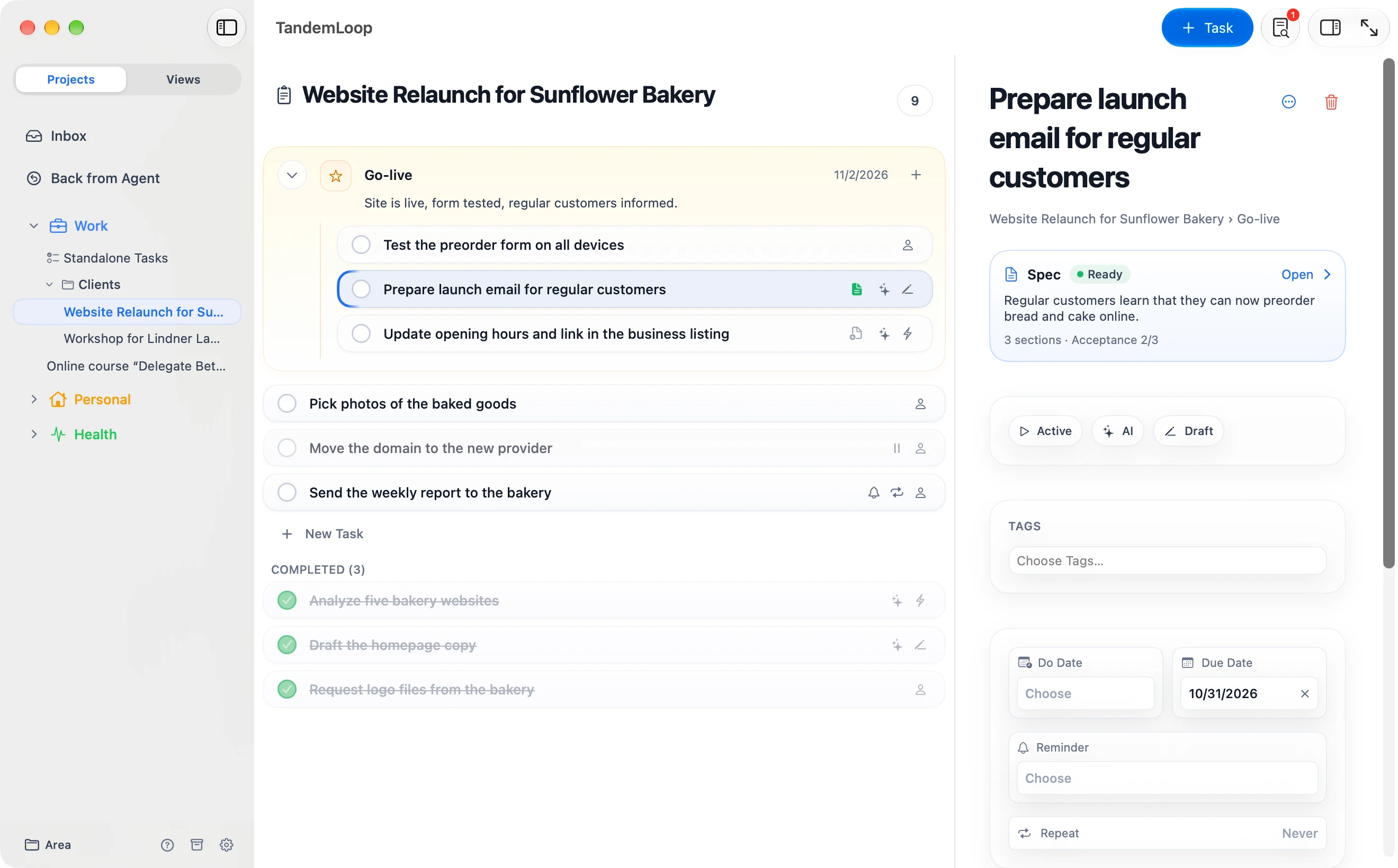
Structure
Areas, projects, milestones, tasks
Areas stand for the big fields of your life and work, such as Work, Personal, or Health. They hold your projects, grouped in folders if you like; break large projects into milestones. Small errands like a dentist appointment don’t need a project and sit directly in the area as standalone tasks.
Every project is sequential or parallel. In a sequential project, only the first open task is up next – a view with “Only Next Action” shows you exactly that task, per project or per milestone.
Status
Active, Waiting, On Hold, Completed, Dropped, or Someday — for tasks, milestones, and projects.
Tags and custom fields
Nest tags as deep as you like: a filter on “Priorities” also finds “Priority 1.” Add custom fields such as client, budget, or sign-off date — as text, number, date, yes/no, choice, or link.
Success criteria and intent
Note on each project how you’ll know it’s done and why it matters to you. During your review, you see this without reading every task.
Drag and drop and undo
Drag tasks, projects, folders, and milestones to their new place. Undo any change with ⌘Z.
Archive
Completed items move to the Archive according to your rules — for example, seven days after completion or once a project is fully finished.
Inbox
Capture in seconds, sort later
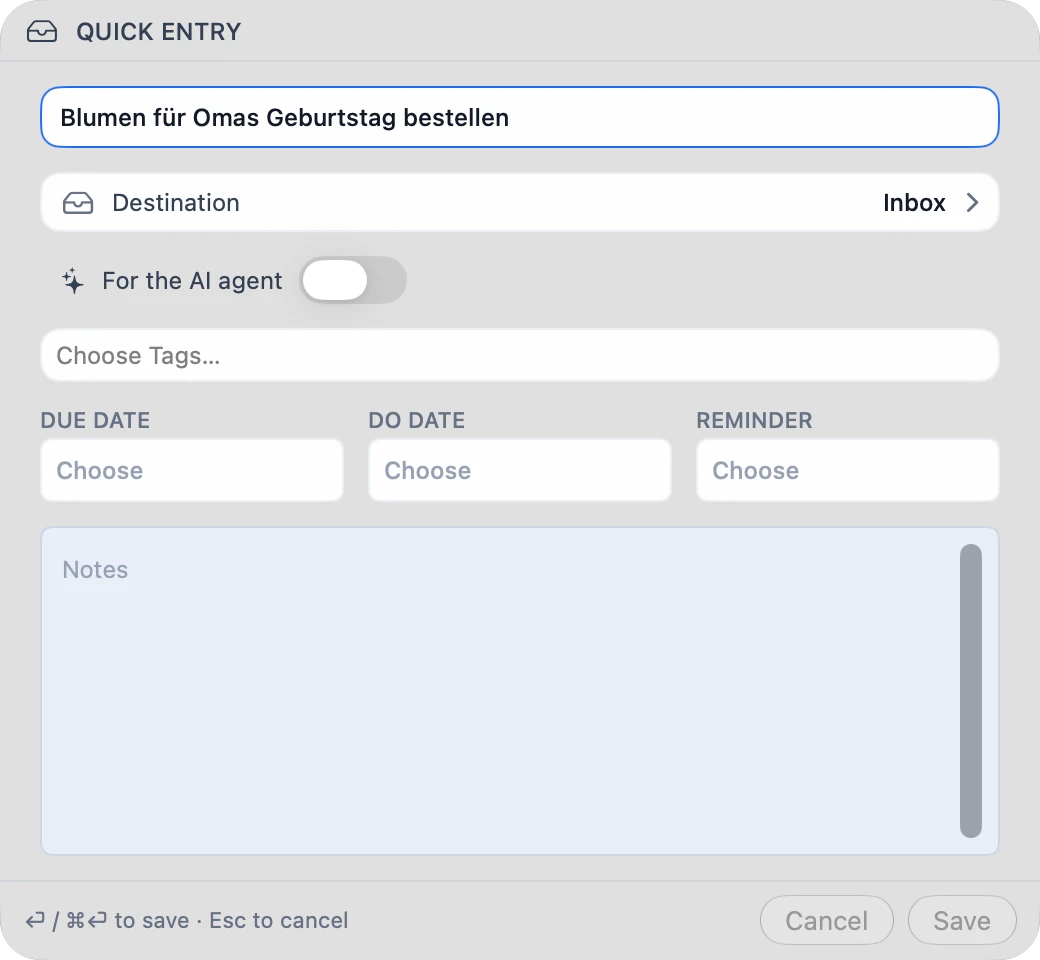
New thoughts land in the Inbox without you having to decide where they belong. When you process them, you drag them onto a project or an area.
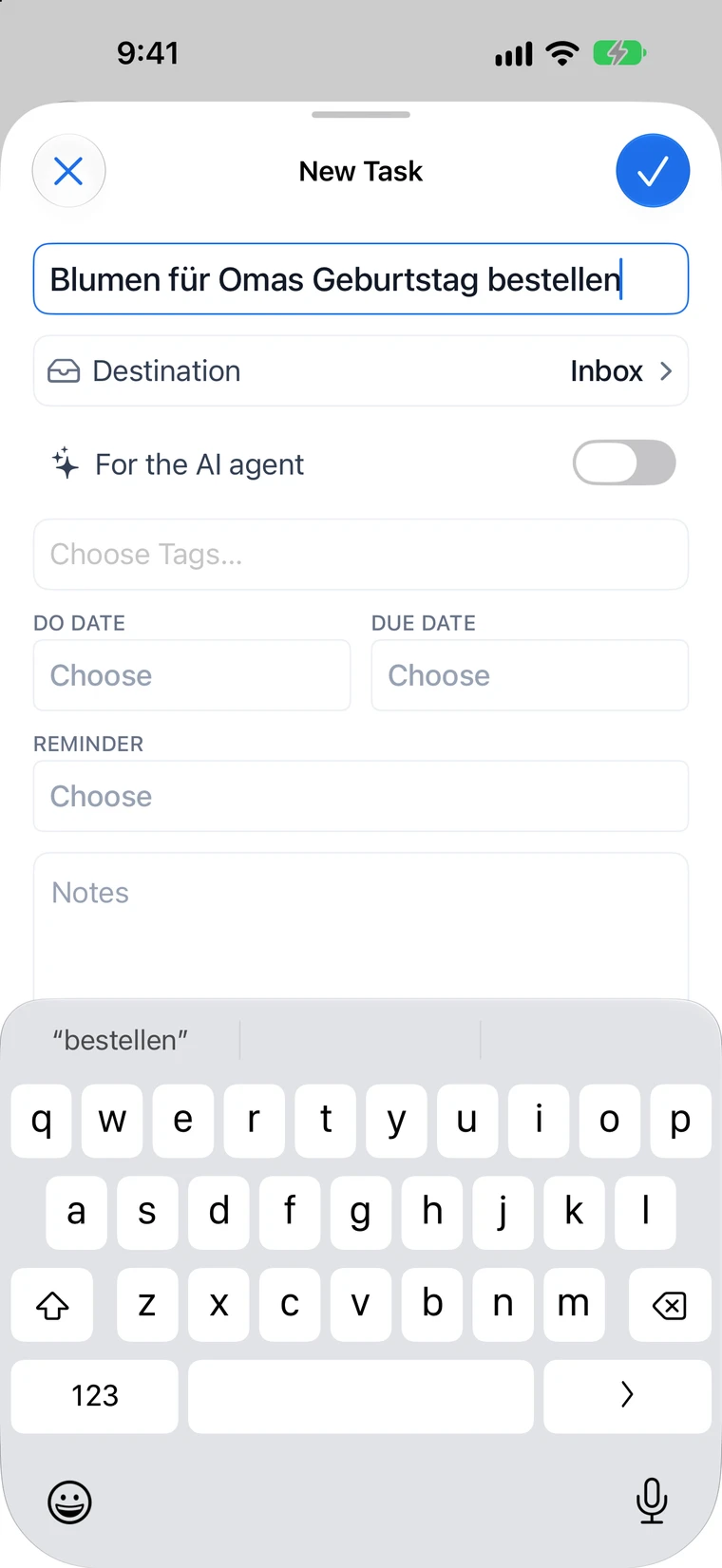
In Quick Entry, you can set the destination, due date, reminder, do date, and tags right away.
Mac
- System-wide keyboard shortcut ⌃⌥Space, even while TandemLoop runs in the background
- Menu bar icon with “New Task…” and the tasks due today
- “Add as Task in TandemLoop” service: turn selected text in any app into a task
- Drag text and links from other apps onto the Inbox
iPhone and iPad
- Share menu in Safari, Mail, Notes, and any app that can share — a link becomes the page title
- “New Task” control in Control Center
- “Add Task” in the Inbox widget
- Quick Entry in the app, on iPad from the keyboard as well
Siri and Shortcuts
- “New task in TandemLoop”
- “What’s due today in TandemLoop”
- Actions for adding, completing, and opening tasks in your own shortcuts
Dates
Due dates, reminders, and recurring tasks
- Due date with time
- When something has to be finished. With a time, the task becomes overdue only after that time, and lists sort by it within the day.
- Do date
- The day you plan to work on the task — independent of the deadline.
- Defer date
- Your views hide the task until this day.
- Waiting For
- The status “Waiting” plus free text noting who or what you’re waiting for.
- Reminder
- A separate time for a notification, independent of the dates: in an hour, this evening, tomorrow morning, or any time you choose.
- Repeat
- Daily, on weekdays, weekly on specific days, monthly — including the last Friday — or yearly, each also at longer intervals. On a fixed schedule or after completion, optionally ending on a date or after a number of occurrences.
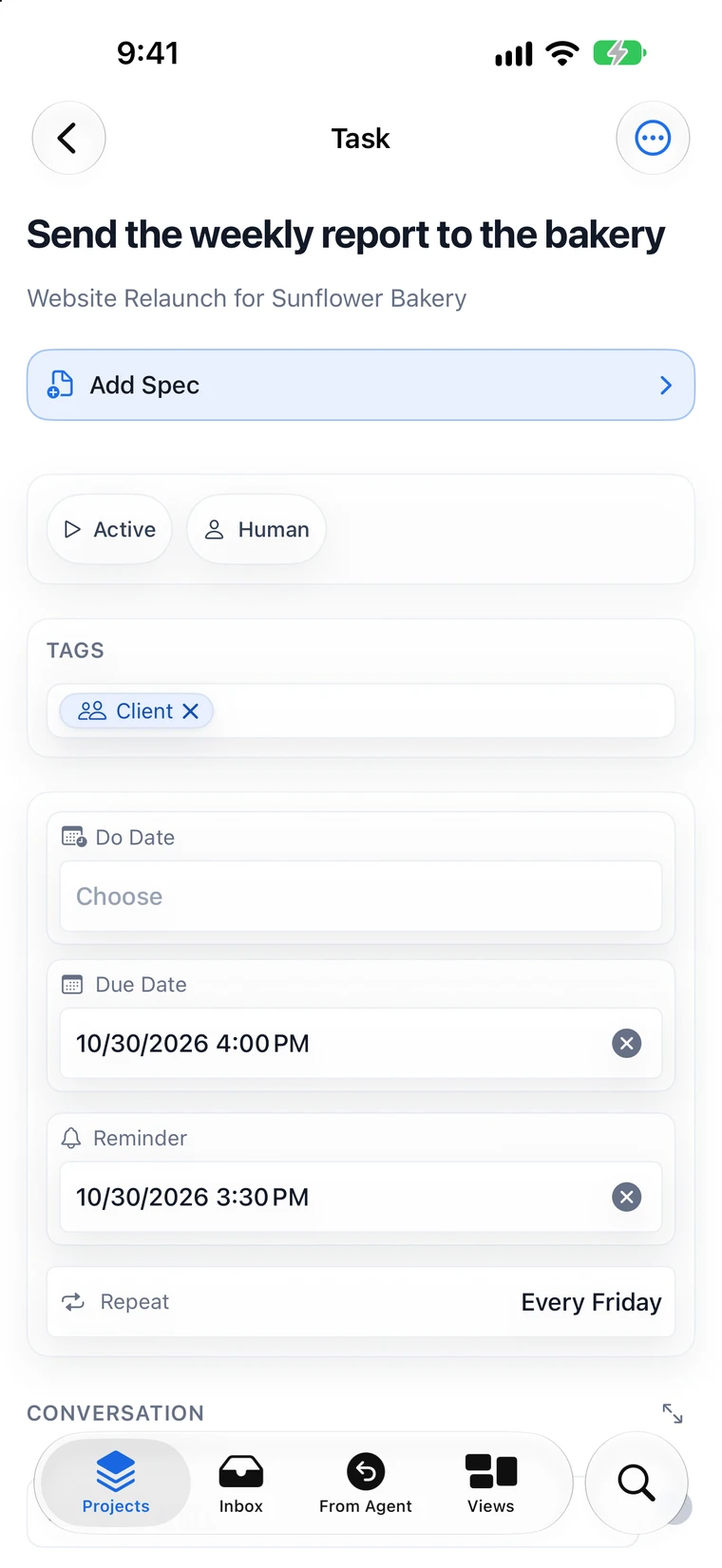
When you check off a recurring task, TandemLoop creates exactly one new task in the same place; the time and reminder carry over. Every notification offers “Complete,” “Later” for one hour, and “Tomorrow.”
Views
Custom views, from kanban board to calendar
A view gathers tasks across all areas and projects according to your rules. Combine filters with AND, OR, and NOT, filter relative to today — say, “due in the next three days” — group by project, status, or due date, and sort by several fields or by hand.
Instead of tasks, a view can also show projects or milestones with their progress.
Seven layouts
List
Groups, sections with their own filters, fields of your choice, and your own order via drag and drop.
Table
Many fields side by side. Select several rows and change their status or due date together.
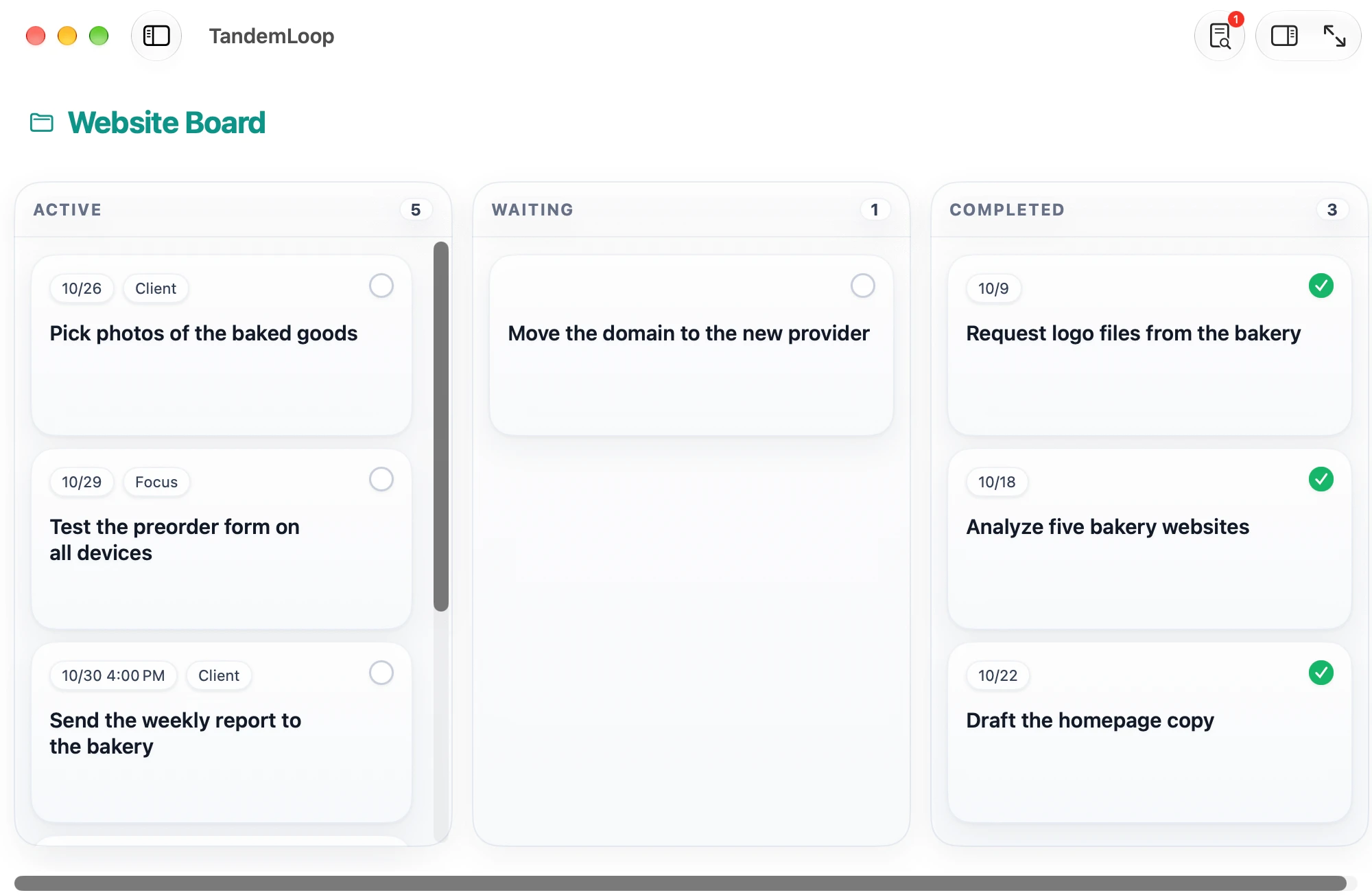
Board
Columns by status, assignment, or delegation, with swimlanes and a WIP limit.
Agenda
Overdue, Today, Tomorrow, This Week, Next Week, Later — for planning your day and week. Drag a task into another section, and its due date changes.
Calendar
Tasks in a monthly grid by due date, with weeks starting on Monday or Sunday.
Multi-View
Two to eight projects, milestones, or views side by side in columns.
Dashboard
Projects, milestones, and views as a grid of rows and columns.
Six views to build yourself
- TodayQuick Setup “Today”optionally with the Inbox
- OverdueQuick Setup “Overdue”oldest first
- Waiting ForQuick Setup “Waiting” · show the “Waiting For” fieldwith project context
- This WeekFilter: Due This Week is Yesgrouped by due date
- KanbanBoard layout · columns by statusWIP limit for “Active”
- Next ActionsFilter: Available is Yesgrouped by project
Methods
GTD, kanban, and the Eisenhower matrix in one to-do app
Getting Things Done
GTD
- Capture: everything goes into the Inbox first — via keyboard shortcut, Share menu, or Siri.
- Clarify: drag items onto projects or areas; whatever can wait gets the status “Someday.”
- Organize: a “Next Actions” view with the “Available” filter, waiting items with the status “Waiting,” and tags as contexts such as “Phone” or “Errands.”
- Reflect: a Weekly Review as an agenda of everything open, plus a project view showing each project’s progress.
- Engage: the “Today” view or the Today widget.
Board with a work limit
Kanban
- A view with the Board layout and columns by status: Active, Waiting, Completed, and Dropped.
- A WIP limit for “Active” — as a warning or as a hard limit.
- Swimlanes split the board by a second criterion.
- Card fields show the due date and tags; the Completed column stays collapsed.
Important and urgent
Eisenhower matrix
- Create “Important” as a tag.
- Define “urgent” by due date, for example “due within two days.”
- Create four views, one per quadrant.
- A dashboard with two rows and two columns shows all four views at a glance.
Important and urgent
Tag Important · due within two days
- Review sales tax return
- Book vacation rental
Important, not urgent
Tag Important · later or no date
- Write script for lesson 2
- Draw up a 16-week training plan
Urgent, not important
No tag Important · due within two days
- Choose product photos
Neither
No tag Important · later or no date
- Drop off glass recycling
Everyday use
Widgets, notifications, Spotlight, and keyboard
Widgets
Notifications
Spotlight
App links
Keyboard
Themes
Your data
Your tasks live in your iCloud Drive
TandemLoop stores tasks, projects, views, and settings in a folder in your iCloud Drive instead of a closed database — as text files you can open in any editor.
No account, no server of our own, no data collection.
Area
Work
---
title: Review sales tax return
status: active
due_date: '2026-11-10T09:00:00'
do_date: '2026-11-07'
repeat:
  unit: month
  day: 10
---

Check against the receipts in the bookkeeping folder.
Devices
One to-do app for all your Apple devices
iPhone
Capture
Jot things down on the go, check them off, and see what’s due today.
iPad
Plan
Sidebar, list, and Inspector side by side. With a keyboard, the same shortcuts work as on the Mac.
Mac
Work
Multiple windows, menu bar, service, and Multi-View for parallel projects.
With AI agents
Ready when you work with an agent
AI agents with file access, such as Claude Code, Codex, or Cursor, work in the same projects: they take on tasks, sort your Inbox, and hand tasks back to you.
FAQ
Questions about the to-do app
What’s the best way to organize my to-do list?
Keep capturing and organizing separate: new items go into the Inbox first, and when you go through it, you drag them onto a project or an area. Anything with several steps gets a project; single items stay standalone tasks. Instead of one long list, a view shows you only what’s relevant right now — for example, everything due today.
How do I create recurring tasks?
In the task’s Inspector under “Repeat.” “On Schedule” keeps a fixed rhythm, such as every Monday at 9:00 AM. “After Completion” counts from the day you check the task off, such as two weeks later. Use the context menu to skip a single occurrence or end the repetition.
Can I use GTD with TandemLoop?
Yes. The Inbox collects everything you capture, projects are sequential or parallel, and a view with “Only Next Action” shows you the next task in each project. Waiting For, Someday/Maybe, and the Weekly Review have their own statuses and views.
How does TandemLoop sync between Mac, iPad, and iPhone?
Through iCloud Drive: your data folder lives there, and every device opens the same folder. Changes appear on your other devices as soon as iCloud has synced them.
How much does TandemLoop cost?
€4.99 per month or €49.99 per year, each with a free trial month. One subscription covers Mac, iPad, and iPhone and works with Family Sharing. The App Store shows prices in other currencies. TandemLoop is coming soon to the App Store.
What happens to my tasks if I end my subscription?
TandemLoop switches to read-only mode: you can still view and search all your tasks, but editing is locked. Your data in iCloud Drive stays unchanged.
You’ll find more answers on the support page.